


Amjad Traders
NMMINER NerdMiner Plus V4.0.0 + Nerd Bitcoin Miner 700+ KH/s 2.8" touch display, built on white ESP32-2432028R-PLUS
NMMINER NerdMiner Plus V4.0.0 + Nerd Bitcoin Miner 700+ KH/s 2.8" touch display, built on white ESP32-2432028R-PLUS
Regular price
Rs.13,984.58
Regular price
Rs.23,307.63
Sale price
Rs.13,984.58
Shipping calculated at checkout.
Quantity
Couldn't load pickup availability
SPECIFICATIONS
Battery Included: no
Brand Name: NONE
High-concerned chemical: None
Model Number: NerdMiner 4.0 Plus
Origin: Mainland China
Power Consumption: 1W
Transmission Rate: 10/100Mbps
Weight: 125g
🚀 NerdMiner Plus: Setup & Support Guide
🔗 Compatible Hardware & Tools
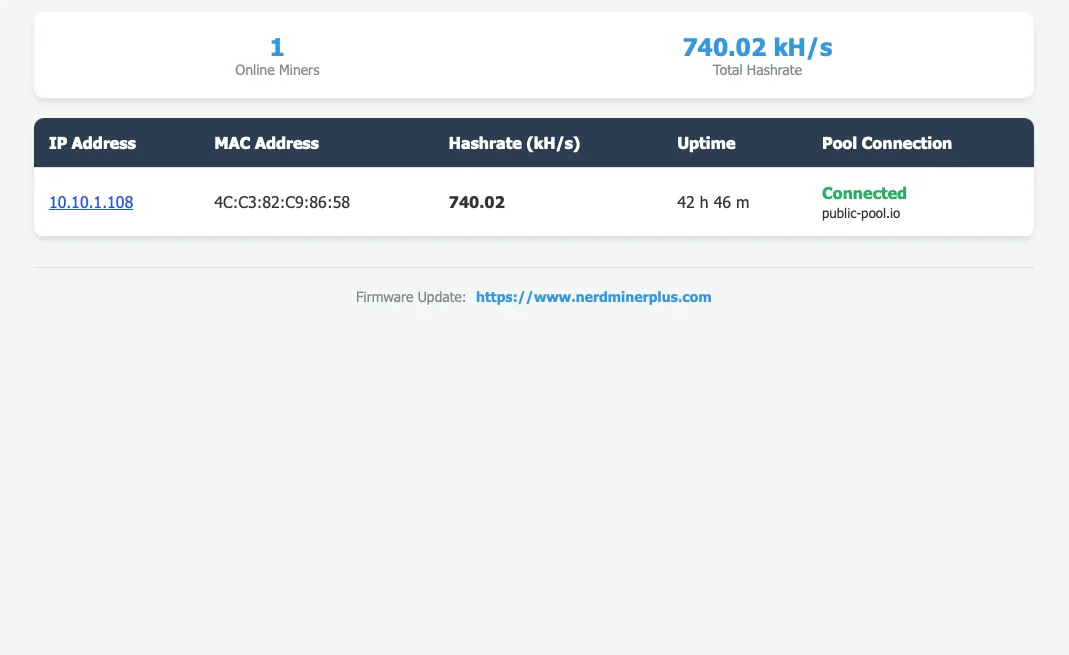
Centralized Monitoring: Supports centralized monitoring. Download the monitoring service to your PC; once running, you can access the dashboard by entering the server's IP address into your phone or computer's browser.
NMMINER NerdMiner Plus V4.0.0 + Nerd Bitcoin Miner 700+ KH/s 2.8" touch display, built on white ESP32-2432028R-PLUS
🚀 Smart Miner (NerdMiner) Quick Configuration Guide
Screen color and text color support custom configuration, allowing you to switch to your favorite colors.
The LED backlight can be custom colored, offering red, blue and green options. You can also create your own mixed colors or turn it off.
📦 Packing List
- 1 x Main Unit (with case)
- 1 x USB Data Cable
- 1 x PP Box
Step 1: Device Boot & Hotspot Connection
- Power On: Once plugged in, the miner's screen lights up and displays "Connecting to WiFi...". It will switch to AP mode in 60 seconds if connection fails.
- Connect to Miner Hotspot: On your phone or computer, connect to the Wi‑Fi name starting withBTC_.
- Default Wi-Fi Password:12345678
Step 2: Login to the Management Dashboard
- Open your browser and go to:192.168.4.1 orhttp://192.168.4.1/config
- Log in with default credentials:
- Username:admin- Password:admin - You can switch language via the dropdown menu in the top-right corner.
Step 3: Important Parameter Configuration
⚠️ Important Note:Please finish Mining Settings, Display Settings, and Advanced Settings first, and configure Network Settings last. The configuration page will disconnect once the miner connects to your home Wi-Fi.
🔧 Mining Settings [Required]
- Primary Mining Pool:public-pool.io Port:21496
- Backup Mining Pool:solo.ckpool.org Port:3333
- Pool Password:x
- Wallet Address: Must be replaced with your own Bitcoin (BTC) wallet address, otherwise mining rewards cannot be received!
- ClickUpdate Mining Settings to save.
🖥️ Display & LED Settings [Optional]
- Adjust screen rotation, brightness, and inactivity auto-off timer
- Customize web theme (Standard/Dark) and screen color inversion
- Set RGB LED brightness (0–255)
- Save with corresponding update buttons
🔐 User & Advanced Settings [Optional]
- Change default admin username and password for security
- Enable log viewer or clear historical mining statistics
Step 4: Network Settings [Final Step]
- Go toNetwork Settings
- ClickScan to find nearby Wi-Fi networks
- Select your home Wi-Fi and enter the password
- (Optional) Enable and configure static IP if needed
- ClickUpdate Network Settings
✅ Mining Successfully Started!
The miner will disconnect from the hotspot and connect to your home Wi-Fi. When the Wi-Fi icon shows normally and hashrate updates on the screen, your miner is online and mining properly.
🚀 Happy mining!


